Install
- To find blabe, open the Microsoft Store app on your PC and search for blabe, or follow the Microsoft Store link on the download page.
- Click Get or Install.
- When it’s installed, click Open, or open blabe from the Start menu.
The Microsoft Store signs and checks the app, so Windows shows no SmartScreen warning for it. blabe needs Windows 11 on an x64 PC; see what you need.
First run
The first time you open blabe, a window called Welcome to blabe walks you through what’s missing. It shows only the pages you still need, and you can skip any page but the last.
- Let’s get you talking. Click Let’s Go.
- Your microphone. Shown only if Windows is blocking the microphone. Click Open Microphone Settings and turn on what the page names: Microphone access, Let apps access your microphone or Let desktop apps access your microphone. Make sure blabe is on in the list of apps too. The page updates when you come back. blabe listens only while you hold the hotkey.
- Start Your Free Trial. Click Start Free Trial: 2 days on this PC, with no card, email or signup. If you’ve subscribed, enter the license key from your purchase and click Sign In. To buy a plan, choose See pricing; to do this later, Skip for now.
- Try it. Hold Ctrl+Win and say something, like “Hello, this is blabe.” Let go, and your words appear in the box.
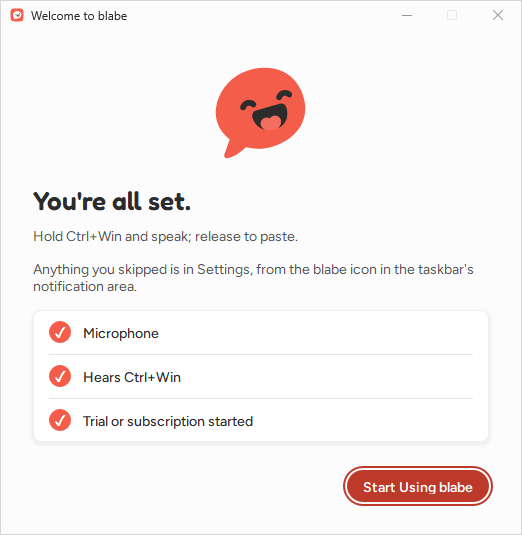
- You’re all set. The page lists Microphone, Hears Ctrl+Win and Trial or subscription started. Click Start Using blabe.
Try it
- Click into any text field, for example in Notepad.
- Hold Ctrl+Win and say a sentence. A small pill at the bottom of the screen shows a level meter while you speak.
- Let go. The pill shows three dots while blabe transcribes, then your words are pasted where your cursor is.
Press Esc while you hold the hotkey to cancel before anything is sent. Pressing any other key while you hold it counts as a shortcut and cancels too. Taps under 0.3 seconds and recordings with only silence are ignored. A recording stops on its own after 5 minutes and is transcribed.
The blabe menu
blabe has no main window. Its icon sits in the taskbar’s notification area, at the right end of the taskbar; if you don’t see it, click the ^ arrow to show hidden icons. Click the icon to open the menu.
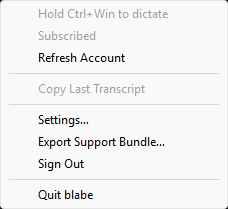
- The first line reminds you of the hotkey. The next shows your plan, with Refresh Account to check it again.
- Fix Microphone Access… or Sign In to blabe… appears when one of them needs you.
- Copy Last Transcript copies your last dictation as transcribed, before any AI cleanup. Retry Transcription appears when a dictation failed and can be sent again.
- Settings…, Export Support Bundle…, Sign Out and Quit blabe.
Settings
Open Settings… from the blabe menu. It has four pages.
- General: the Hotkey (Ctrl+Win by default) and Record New Hotkey; Mode, either Hold to talk or Press to start, press again to stop; Microphone (System default); Play start and stop sounds, off by default; and Launch at login, off by default. See Hotkey.
- Dictation: Language (Auto-detect by default), Clean up speech (on) and AI cleanup (off). Prompt mode is in blabe for Mac only for now.
- Words: Words to recognize, separated by commas. The list holds 50 in all, and blabe already knows its own name.
- Account: start the trial or sign in with your license key, see your plan, Sign Out, and Manage Subscription…. Bought a subscription during your trial? Sign out, then sign in with your license key. See Your account and license.
Updates
The Microsoft Store keeps blabe up to date, as it does your other Store apps. Settings → General says “This copy of blabe doesn’t update itself.”, because the Store does it.