What you need
- Windows 11 on an x64 PC. Windows 10 and Windows on Arm aren’t supported.
- A microphone.
- An internet connection. blabe sends your audio to be transcribed, so it needs one to work.
- The 2-day free trial, or a subscription and the license key from your purchase. One subscription covers up to 3 devices, Macs and Windows PCs together. Transcription is included, with unlimited dictation for personal use (fair use applies).
What it does
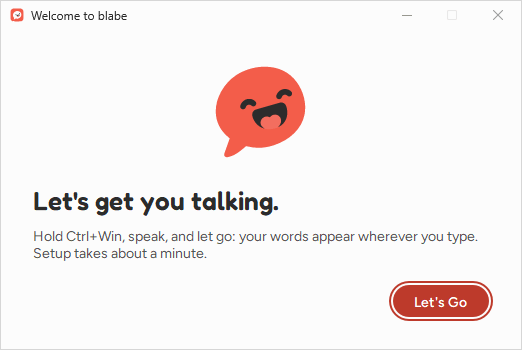
- Your words, as you said them. Hold Ctrl+Win, speak, and let go. blabe pastes the transcript at your cursor. Clean up speech removes “um” and “uh”, and nothing else is rewritten unless you turn on AI cleanup.
- AI cleanup, off by default: turns rambling speech into clear text. If it can’t, your words are pasted as transcribed and the pill says so.
- Prompt mode is in blabe for Mac only for now.
- Words to recognize: names, products and jargon to spell right, 50 in all, counting blabe’s own name.
- Language: Auto-detect, or pin one of 60 languages.
How it differs from the Mac app
- The hotkey is Ctrl+Win instead of Fn. You can choose Right Ctrl or Right Shift, or record your own. See Hotkey.
- Permissions: the microphone is the only one. There’s no Accessibility or Input Monitoring step.
- Where it copies instead of pasting: in apps run as administrator, in password fields, in fields blabe can’t confirm, and while an input method (IME) is composing. Your words stay on the clipboard. See Admin apps and copying.
- It never presses Enter. There’s no automatic sending to coding agents on Windows.
- Updates come from the Microsoft Store. The app doesn’t update itself.
- Your sign-in is kept in Windows Credential Manager, and your settings in
%APPDATA%\blabe.
Next
- Set up blabe for Windows
- Choose or record a hotkey
- Troubleshooting, if something doesn’t work